How To Safely Unlock The Engwe Y600 Scooter Speed
Enhancing the performance of your Engwe Y600 electric scooter by unlocking its speed can transform your urban travel. This process, however, demands precision and awareness of potential pitfalls. This guide provides a clear path through the steps, safety protocols, and verification methods for a successful engwe y600 speed unlock.
Understanding Your Engwe Y600’s Speed Limitations
Electric scooters, including the Engwe Y600, are often programmed with a speed limiter. This is typically done to align with regional regulations and ensure rider safety. This limiter is usually integrated into the scooter’s Electronic Control Unit (ECU). It’s critical to know that modifying these settings can potentially void your warranty and may have legal repercussions depending on your local laws. Always prioritize safe and lawful operation.
Prerequisites for Engwe Y600 Speed Unlock
Before you begin modifying your Engwe Y600’s speed, ensure you have the following ready:
- Engwe Y600 Scooter: Confirm your scooter is in good operational condition and its battery is fully charged. A minimum of 70% charge is recommended to prevent interruptions during the process.
- Smartphone or Tablet: You will need a device capable of running the Engwe Connect app or a compatible third-party application if specified by Engwe. Ensure your device’s operating system is up-to-date.
- Bluetooth Connectivity: Both your smartphone/tablet and the scooter’s controller must have active Bluetooth. Ensure Bluetooth is enabled and discoverable.
- Engwe Connect App: Download and install the official Engwe Connect app from your device’s app store. Make sure it is updated to the latest version to access all features.
- Local Regulations Knowledge: Familiarize yourself with the speed limits and any other rules governing electric scooters in your area. This is essential for responsible riding. Ignorance of the law is not a defense.
- Basic Tool Kit (Optional but Recommended): While not always required for software-based unlocks, a basic set of Allen wrenches might be useful if firmware updates necessitate physical access to components. Having these on hand can save time if a deeper dive is needed.
Step-by-Step Guide to Engwe Y600 Speed Unlock
The primary method for unlocking the speed on your Engwe Y600 utilizes the Engwe Connect app, designed for user-friendliness.
1. Power On Your Engwe Y600: Ensure the scooter is switched on and prepared for pairing. The display panel should be illuminated.
2. Enable Bluetooth: Activate the Bluetooth function on your smartphone or tablet.
3. Open the Engwe Connect App: Launch the application on your device.
4. Pair Your Device with the Scooter: Follow the app’s on-screen instructions to search for and connect to your Engwe Y600. This usually involves selecting your scooter from a list of available Bluetooth devices and confirming a pairing code if prompted. A successful connection is indicated by a persistent scooter icon in the app.
5. Navigate to Settings: Once connected, find the “Settings” or “Advanced Settings” section within the app. This is where most customizable parameters are located. Look for a gear or wrench icon.
6. Locate Speed Limit Options: Within the settings menu, look for an option labeled “Speed Limit,” “Max Speed,” or a similar designation. The exact wording may change with app updates. It might be nested under a “Performance” or “Control” submenu.
7. Adjust the Speed Limit: You will likely see a numerical value representing the current speed limit. Carefully adjust this value to your desired setting. Crucially, do not exceed speeds that are safe for your riding conditions or legal in your jurisdiction. Many users opt for gradual increases, such as 5 mph (8 km/h) at a time.
8. Save Changes: After adjusting the speed limit, tap the “Save,” “Apply,” or “Confirm” button to store the new setting. The app will then transmit this configuration to the scooter’s controller. A confirmation message should appear.
9. Restart the Scooter: It is good practice to power off your Engwe Y600 completely and then power it back on to ensure the new settings are fully recognized by the controller. Wait for the scooter to fully boot up before testing.
Common Failure Mode: App Connectivity Issues
A frequent hurdle when attempting an engwe y600 speed unlock is the inability to establish or maintain a consistent Bluetooth connection between the app and the scooter. This can prevent you from accessing settings or saving your adjustments, leaving you stuck with the default speed.
Detection:
You’ll typically notice this problem if the Engwe Connect app fails to detect your scooter during pairing, or if the connection repeatedly disconnects after being established. The app might display messages like “Scooter not found,” “Connection failed,” or the paired device icon may vanish after a few seconds. Another sign is if the settings you attempt to change do not save or revert back immediately.
Prevention:
- Proximity: Ensure your smartphone is close to the scooter’s control unit during pairing and adjustment. Keep the device within 3 feet (1 meter) of the scooter. Physical obstructions like thick walls or other electronics can interfere with Bluetooth signals.
- App Permissions: Verify that your operating system has granted all necessary permissions to the Engwe Connect app, particularly for Bluetooth and location services (sometimes required for Bluetooth scanning). On Android, go to Settings > Apps > Engwe Connect > Permissions.
- Device Restart: Often, simply restarting both your smartphone and the scooter can resolve temporary Bluetooth glitches. For the scooter, this means powering it off completely, waiting 10 seconds, and powering it back on.
- Clear Bluetooth Cache (Advanced): On some Android devices, clearing the Bluetooth cache and data for the Engwe Connect app can fix persistent connection problems. Navigate to Settings > Apps > Engwe Connect > Storage & cache > Clear cache, then repeat for Clear storage.
Expert Tips for Modifying Your Engwe Y600
Here are some insights from experienced riders to help you navigate the speed modification process safely and effectively.
- Tip 1: Incremental Adjustments:
- Actionable Step: Instead of setting the maximum speed immediately, increase the limit in small increments (e.g., 2-3 mph or 3-5 km/h) at a time. Test the scooter’s performance and stability at each new level in a controlled, safe environment before proceeding further.
- Common Mistake to Avoid: Jumping directly to the highest setting without gradual testing. This can lead to unexpected handling characteristics, such as instability during braking or cornering, or an overestimation of your ability to control the scooter at higher speeds.
- Tip 2: Firmware Updates are Key:
- Actionable Step: Regularly check for firmware updates for both the Engwe Connect app and the scooter’s controller via the app. Install any available updates, as they often contain bug fixes and performance improvements that can enhance the unlock process and overall scooter stability.
- Common Mistake to Avoid: Ignoring firmware update notifications. Outdated firmware can cause compatibility issues, reduce functionality, or even prevent the speed unlock from working correctly, leading to frustration and potential errors.
- Tip 3: Understand Power Delivery:
- Actionable Step: Be aware that increasing the speed limit can also affect how the scooter’s motor delivers power, potentially making it feel more aggressive. Practice accelerating and decelerating in a safe, open area to get accustomed to the new power delivery and ensure you can control sudden bursts of speed.
- Common Mistake to Avoid: Assuming the scooter will handle increased speeds identically to its factory setting. Higher speeds demand more precise control, especially during turns and braking. Riders may experience reduced stopping distances or a greater tendency to skid if braking is applied too abruptly.
Troubleshooting Common Issues
Experiencing problems during the engwe y600 speed unlock process can be frustrating. Here are solutions for some common issues:
- Problem: The Engwe Connect app does not display the option to adjust the speed limit.
- Solution: Ensure you have the latest version of the Engwe Connect app installed. Older versions or regional variations might not expose all advanced settings. Also, confirm your scooter’s firmware is up-to-date, as speed limit adjustment capabilities can be firmware-dependent. Check the app’s “About” section for version info and Engwe’s support site for firmware update instructions.
- Problem: The scooter still limits speed after applying changes in the app.
- Solution: Double-check that you saved the changes correctly by confirming the confirmation message in the app. Power cycle both your smartphone and the scooter. If the issue persists, try unpairing and re-pairing the scooter with the app. In rare cases, a factory reset of the scooter’s controller might be necessary, but this should be a last resort and may require consulting Engwe support as it can reset all custom settings.
- Problem: The scooter behaves erratically or shows error codes after the speed adjustment.
- Solution: This suggests a potential issue with the new settings or the scooter’s components handling the increased load. Immediately revert the speed limit to a safe, known-good setting through the app. If the problem continues, it is advisable to contact Engwe customer support for diagnosis, as it might indicate a hardware limitation or an incompatibility.
Verification Checklist
After attempting to unlock the Engwe Y600’s speed, use this checklist to confirm the process was successful and safe.
- [ ] Bluetooth Connection Stable: The Engwe Connect app consistently connects to the scooter without dropping for at least 5 minutes.
- [ ] Speed Limit Visible in App: The speed limit adjustment option is present and accessible within the app’s settings, and the current setting reflects your desired value.
- [ ] New Speed Limit Applied: After saving and restarting, the scooter now achieves higher speeds than before when tested on a flat, open surface.
- [ ] Smooth Acceleration: The scooter accelerates smoothly up to the new speed limit without stuttering, unusual motor noises, or power fluctuations.
- [ ] Braking Performance: The scooter’s brakes remain effective and responsive at the higher speeds, stopping the scooter within a predictable distance.
- [ ] No Error Indicators: The scooter’s display or app shows no error codes or warning lights after the speed adjustment and subsequent ride.
Frequently Asked Questions (FAQ)
- Q: Will unlocking the speed void my Engwe Y600 warranty?
- A: Modifying factory settings, including speed limits, often voids the manufacturer’s warranty. It’s crucial to check your specific warranty terms with Engwe before proceeding, as they may have specific clauses regarding software modifications.
- Q: Is it legal to unlock the speed on my Engwe Y600?
- A: The legality depends entirely on your local regulations. Many regions have strict speed limits for electric scooters on public roads. Always ride legally and responsibly, and be aware that exceeding these limits can result in fines or confiscation.
- Q: Can I revert to the factory speed limit if I’m not satisfied?
- A: Yes, you can typically use the Engwe Connect app to set the speed limit back to its original factory value or any other desired lower speed. This is a straightforward process within the same settings menu where you made the original adjustment.
CODEBLOCK_0
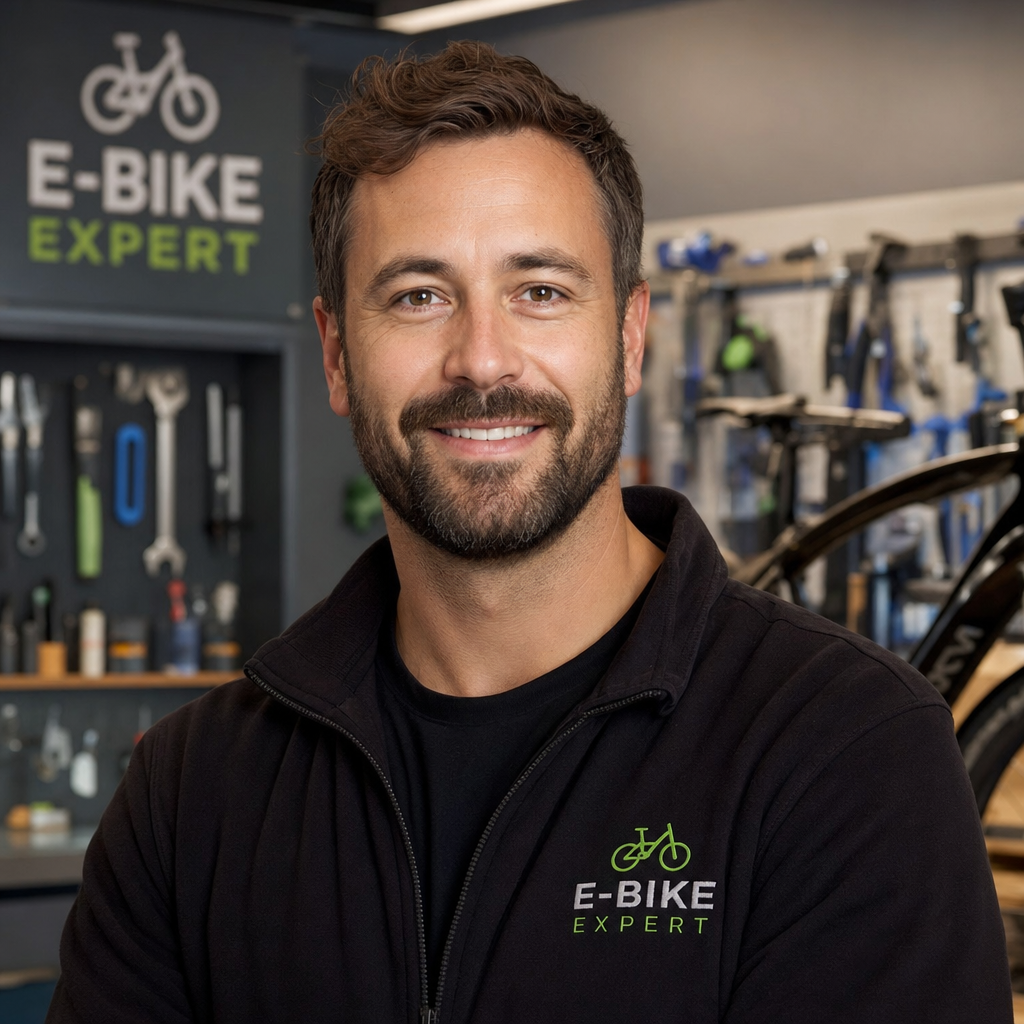
Ryan Williams has spent over 8 years testing, repairing, and writing about electric bikes. He has personally ridden and reviewed 150+ e-bike models from brands like Lectric, Aventon, Rad Power, Super73, and dozens more.
Before founding EBIKE Delight, Ryan worked as a bicycle mechanic for 5 years at independent bike shops across California, where he specialized in e-bike conversions and electrical system diagnostics. He holds a Certificate in Electric Vehicle Technology from the Light Electric Vehicle Association (LEVA).
Ryan’s work has been cited by Electric Bike Report, Electrek, and BikeRumor. When he is not testing the latest e-bike on California backroads, he is in his workshop tearing down batteries and controllers to understand what makes them tick — and what makes them fail.
Areas of Expertise
E-bike performance testing and real-world range verificationBattery diagnostics, charging best practices, and safetyBrand comparisons: Lectric, Aventon, Rad Power, Super73, and moreError code troubleshooting across major e-bike systemsE-bike laws, registration, and compliance by state
Ryan believes every rider deserves honest, hands-on information — not marketing hype.